.png?width=162&height=50&name=LogoHQ(162%20x%2050%20px).png)
INDEX
- Zapier, what is it?
Zapier, what is it?
Zapier allows data to be sent from one application to another by creating automated workflows with triggers and actions.
Zapier currently has more than 6000 apps for creating and automating workflows.
Through the integration with the Zapier tool, the property will be able to use CRM apps, or back up its reservations by storing them in a Google Sheets spreadsheet.
How to sign up for Zapier?
To start setting up your automations, you first need to sign up on the Zapier platform https://zapier.com/sign-up .
The platform offers a free plan, but it has some task and service limitations — choose the one that best fits your property's profile and current stage https://zapier.com/pricing
How does the hqbeds PMS integration with Zapier work?
The HQBeds platform provides some triggers so you can create your Zaps and this way integrate with one of the thousands of systems available on Zapier.
How does the integration work? The Zapier integration with our platform works on a Webhooks model. With this model, for each trigger, certain specific actions performed inside HQBeds send data to Zapier almost instantly.
For example, for the New Reservation trigger, every time a reservation is created in HQBeds, it is sent to a queue of pending submissions to Zapier. This queue, which processes almost instantly, sends the reservation data to Zapier. This way, it's possible to have your account's data integrated automatically, practically in real time.
IMPORTANT
- Zapier cannot send any data to the hqbeds platform.
- The Zapier integration option is not available on all hqbeds plans, check the sales team on WhatsApp
How to integrate the hqbeds platform with Zapier?
Go to the hqbeds platform in the menu Admin > Integrações and generate the Token Zapier and activate the integration and copy the token to use it in the next steps of the integration.
Generate the token
Select Ative (Active) = SIM (Yes) and save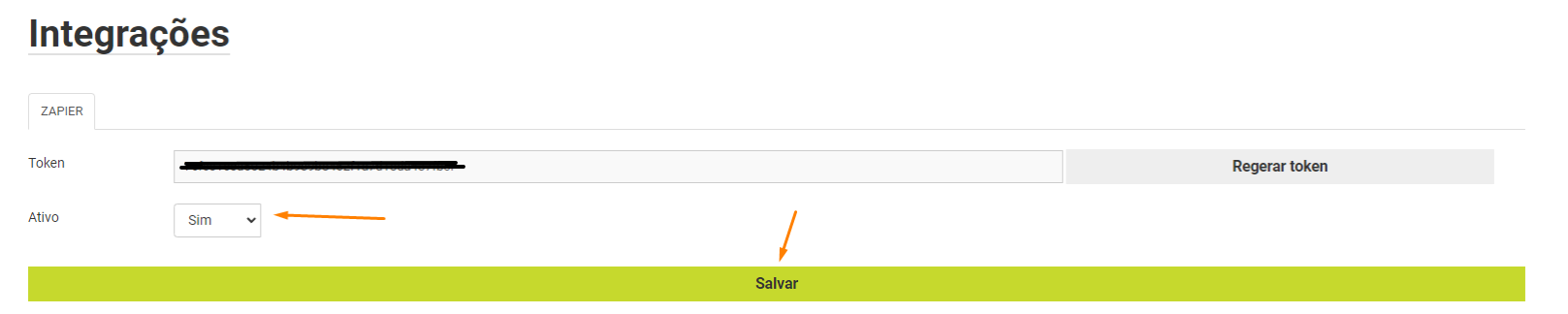
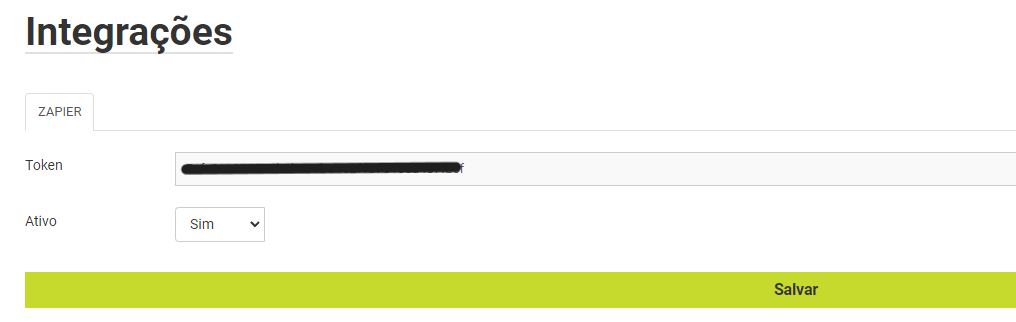
Copy the token that was generated
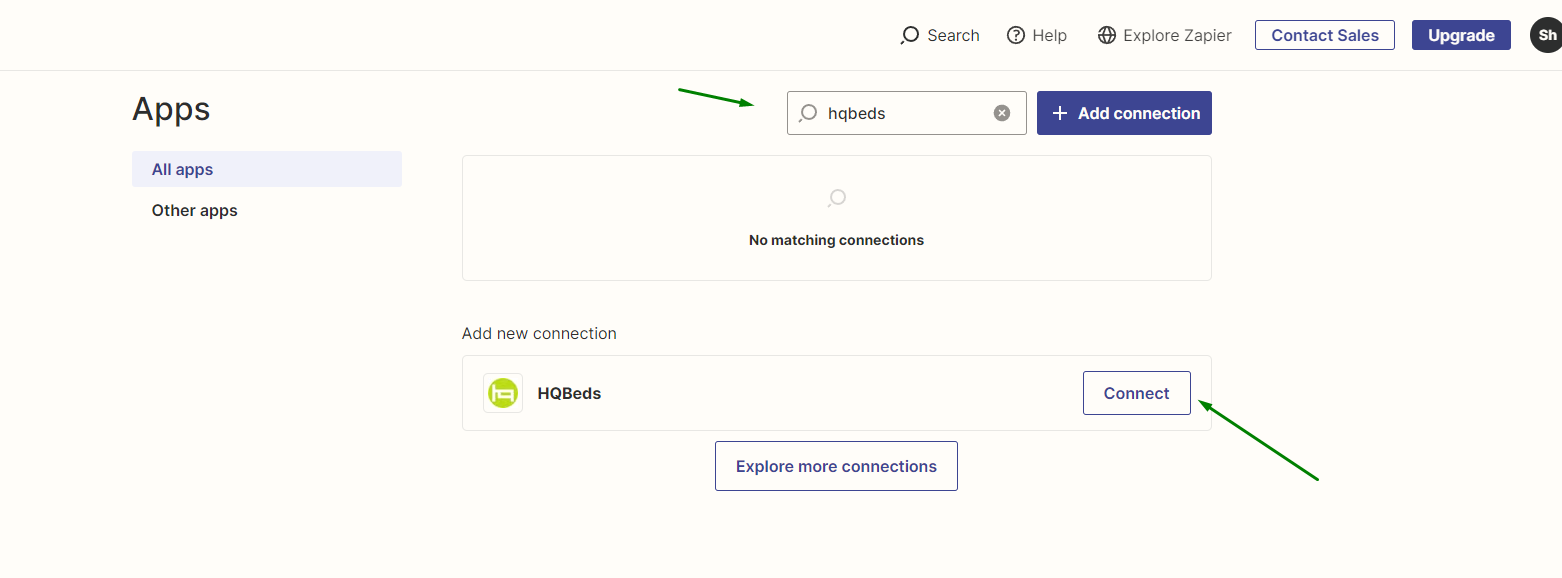
In another tab of your browser, go to https://zapier.com/app/login, log in to your Zapier account, and go to the Apps section and search for HQBeds in the search results, then click the Connect button
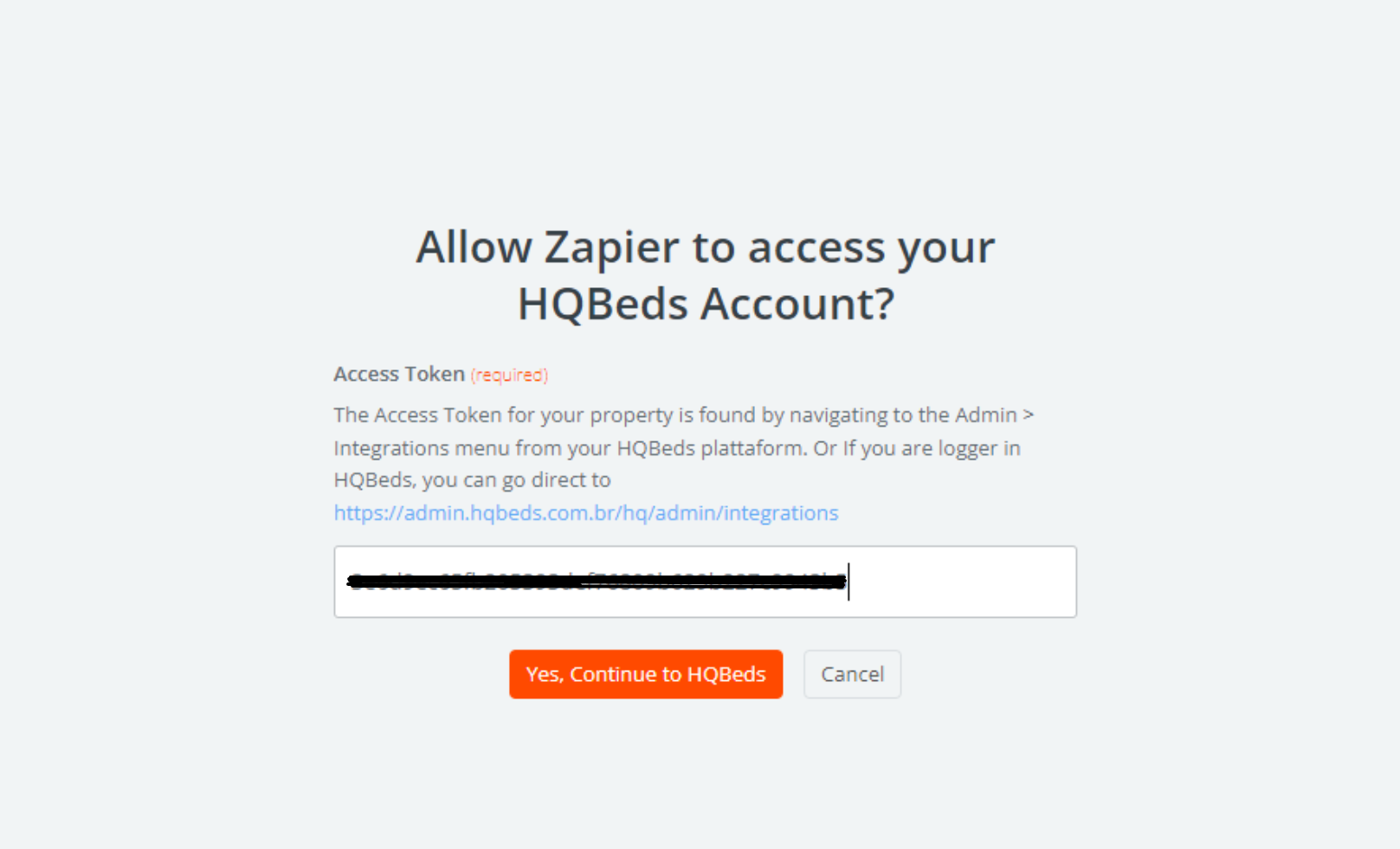
On the next screen, you need to paste the token that was generated inside the hqbeds platform and confirm that you want to continue with the integration
And that's it, the integration is complete!
Which triggers are available on the hqbeds platform?
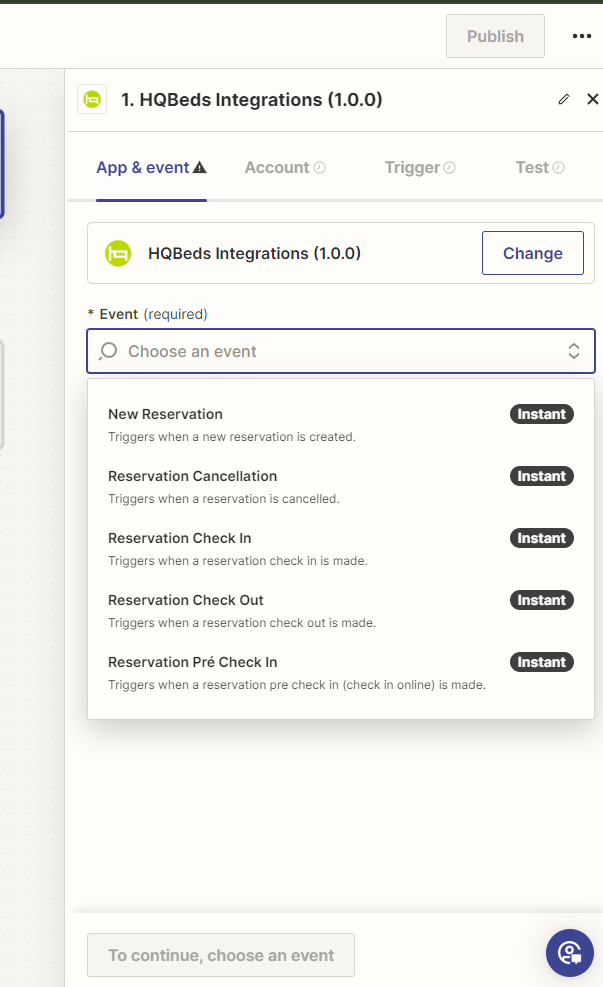
When you start setting up a Zap with the hqbeds platform, you'll have 5 trigger options: New Reservation, Reservation Cancellation, Reservation Pré Check in, Reservation Check in and Reservation Check out — see below what data is sent from each trigger of your hqbeds account to Zapier.
New Reservation
Whenever a new reservation is created, a trigger is sent to Zapier
Reservation Cancellation
Whenever a reservation is cancelled, a trigger is sent to Zapier
Reservation Pré Check in
Whenever a pre-check-in is performed through HQBeds' Online Check-in tool, a trigger is sent to Zapier.
Reservation Check in
Whenever a check-in is performed, a trigger is sent to Zapier.
Reservation Check Out
Whenever a check-out is performed, a trigger is sent to Zapier.
How to create a Zap with hqbeds platform triggers and the apps available on Zapier
In the example below, we'll create a Zap with the New Reservation Trigger, integrated with the Google Sheets app to receive this data. This spreadsheet is meant to be an automated backup base, storing every new reservation that arrives on the hqbeds platform's Mapa (booking map).
This is a basic Zap that has
- The event that acts as the Trigger and starts your Zap (hqbeds sending the New Reservation trigger data to Zapier)
- The event that performs the Action and final execution of the Zap (a Google Sheets spreadsheet that stores all the data received from the New Reservation trigger, sent through Zapier)
Creating a Zap with the Google Sheet (Google Planilhas) app
Inside your Zapier account, click +Create > New Zap.
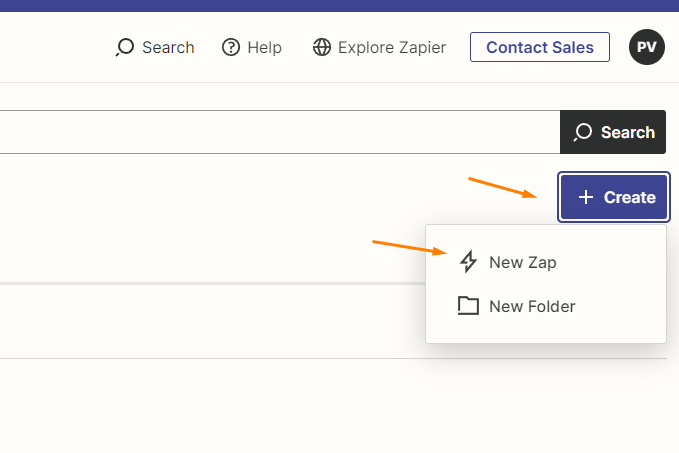
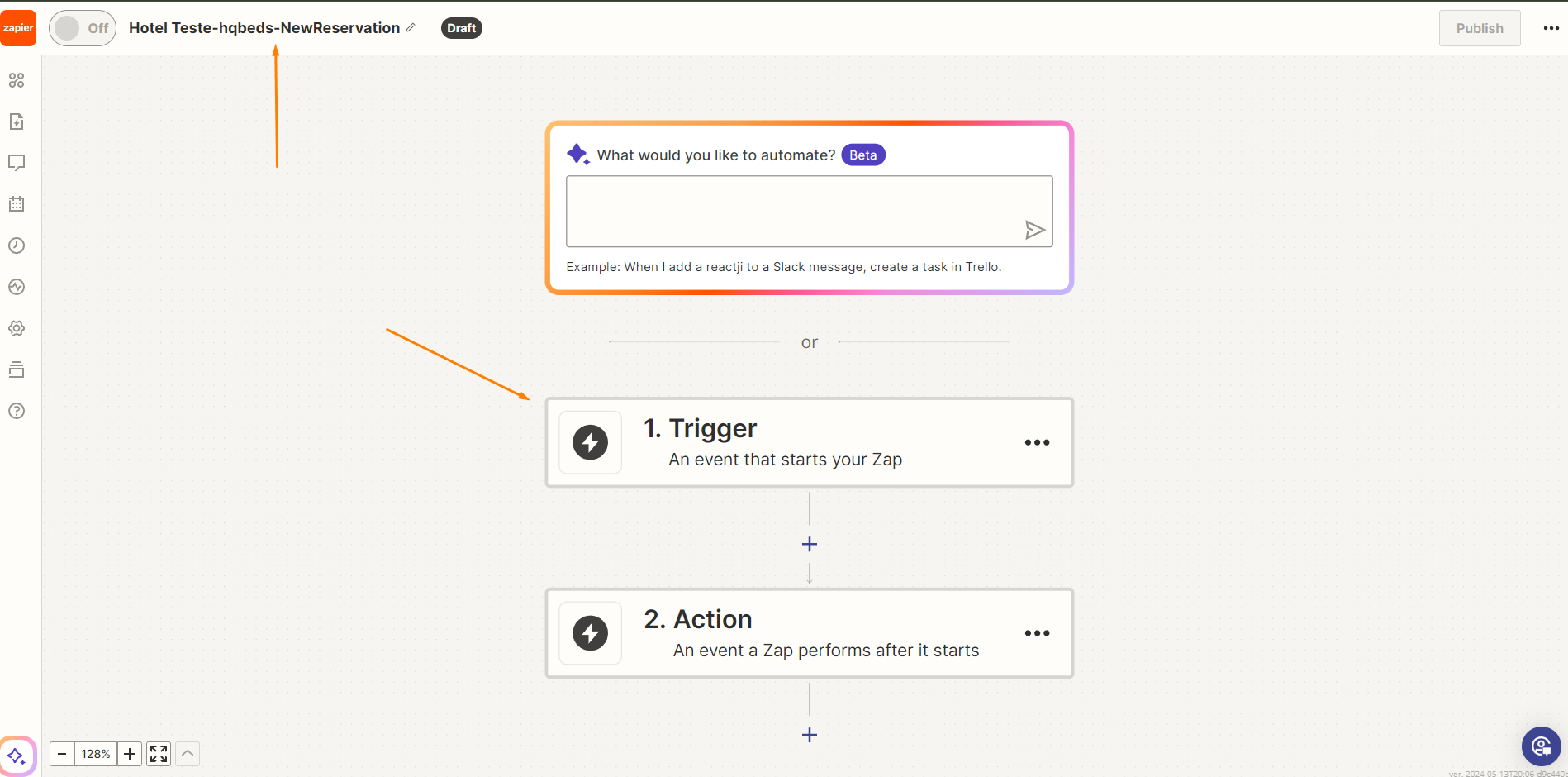
On the next screen, set the title of your Zap and click Trigger to search for the trigger you want to automate
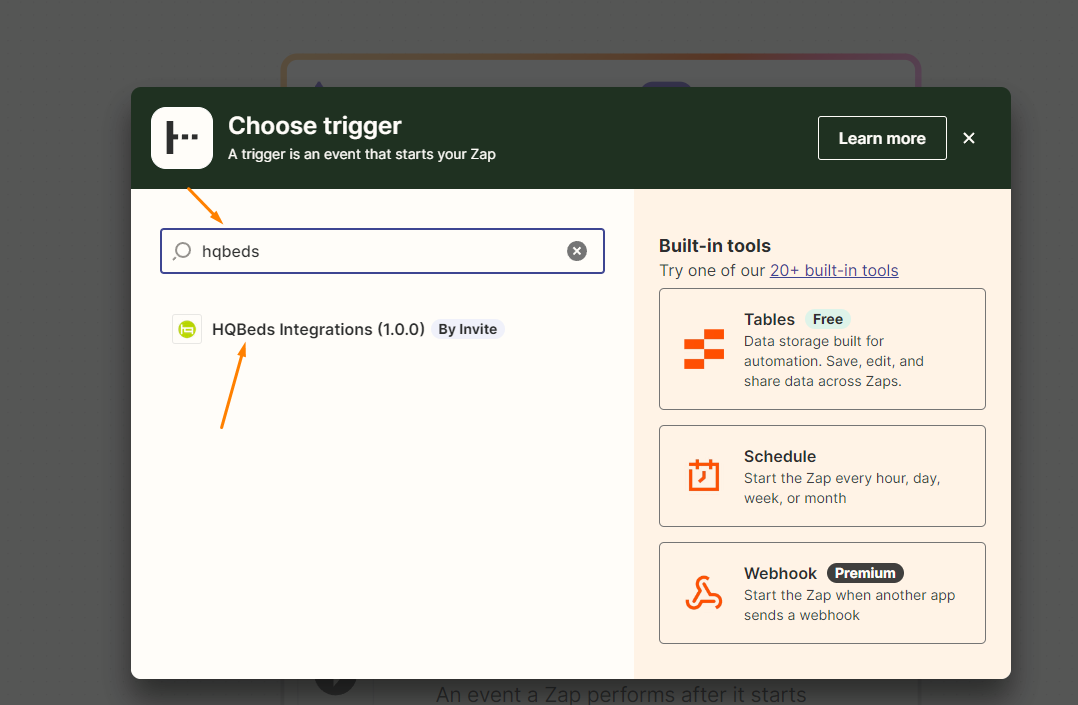
Search for HQBEDS and click Hqbeds
Next, select which event will act as the trigger for your ZAP
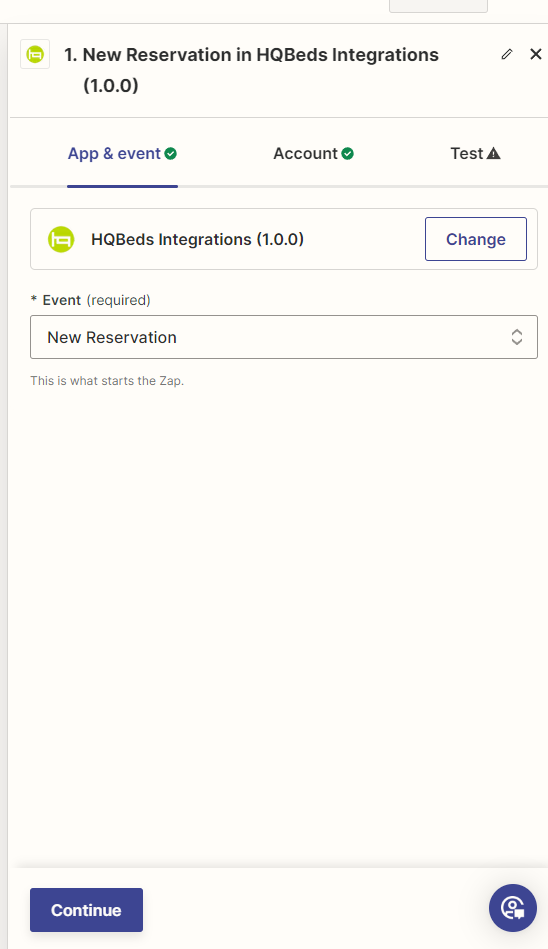
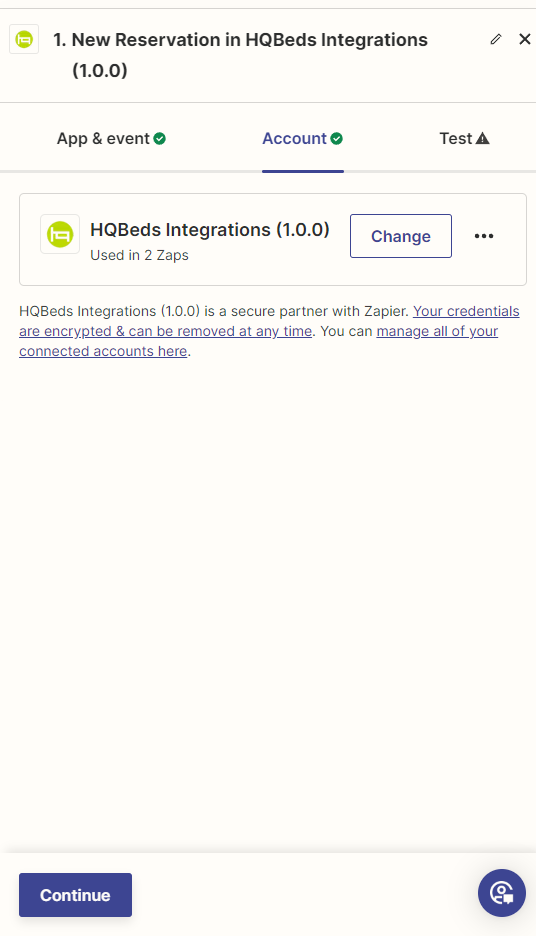
In Account, if you've already integrated your Zapier account with hqbeds, click Continue
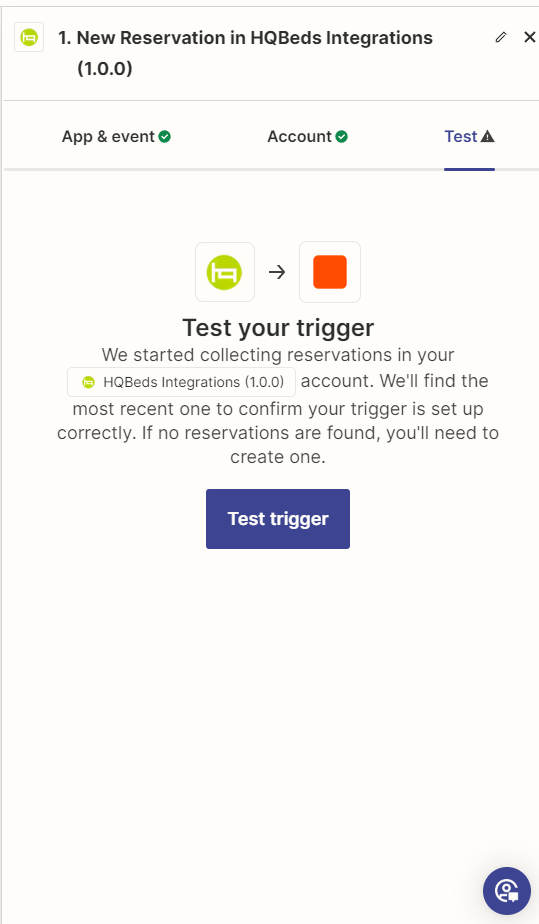
In Test your trigger, you can run a quick test to check whether the integration with hqbeds is working correctly — click the Test trigger button
If the test succeeds, you'll see some sample information for the New Reservation trigger, exported from hqbeds
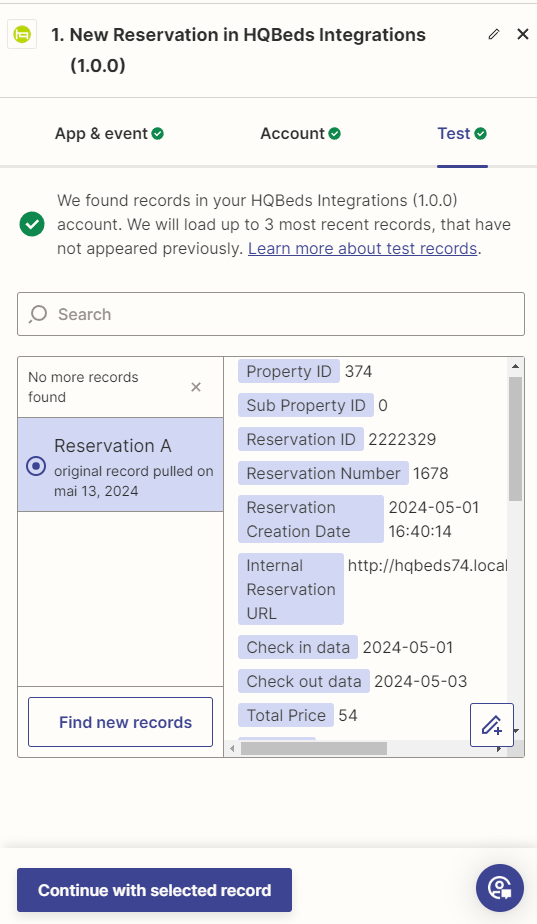
Click Continue with selected record to create the action your Zap will perform. Choose the app that will use the records exported from hqbeds — in our example, we chose the Google Sheets app
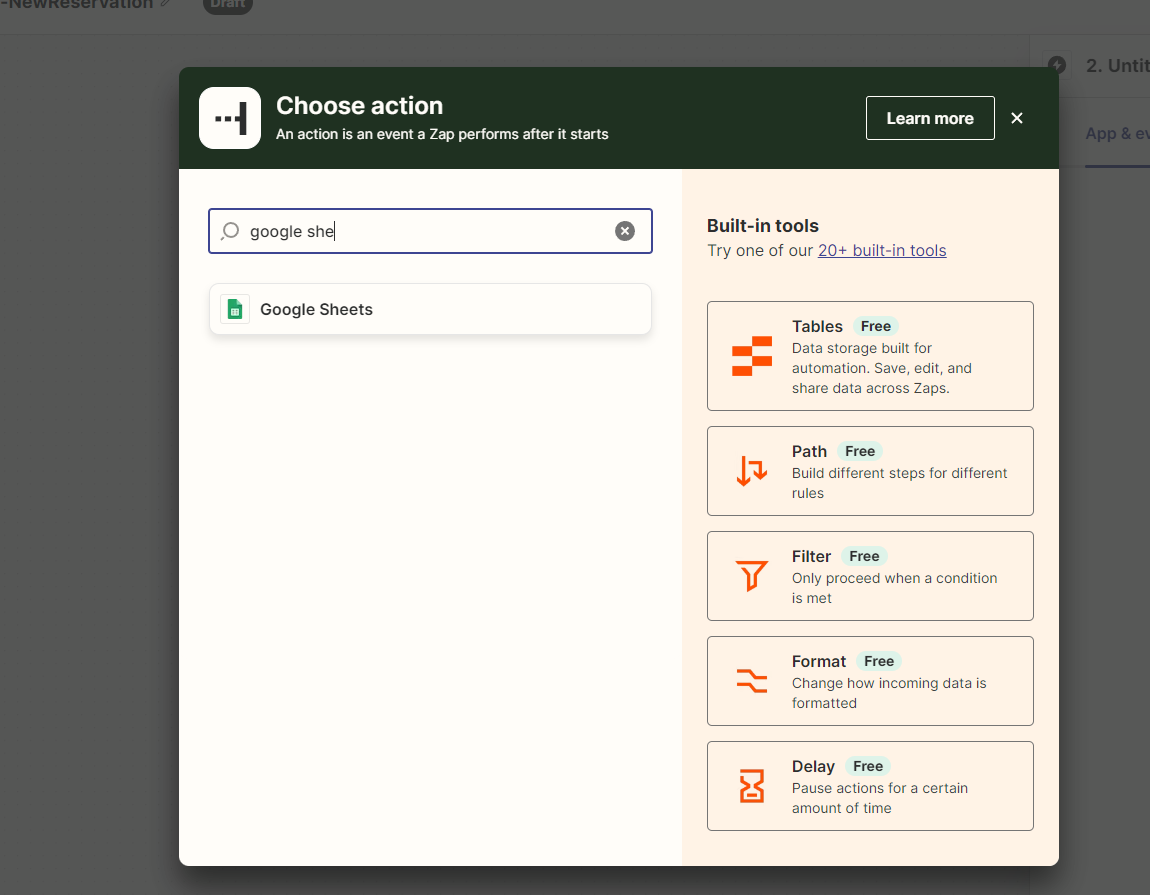
After selecting the app, I now select the event. In my example, since I want to receive all new reservations, I choose the Create Spreadsheet Row option and continue to the step of linking the Google account I'll use.
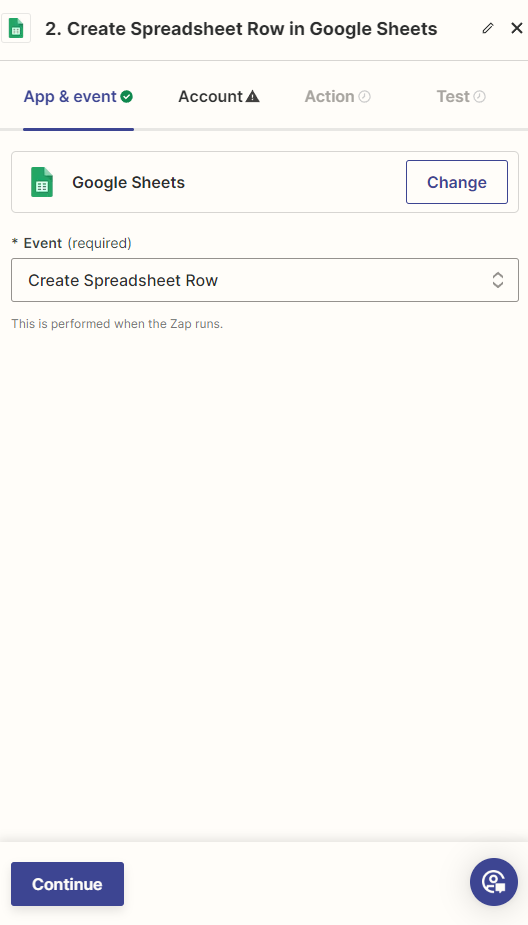
In the next step, we establish a connection with the Google account that owns the spreadsheet I'll use to receive the hqbeds reservation data
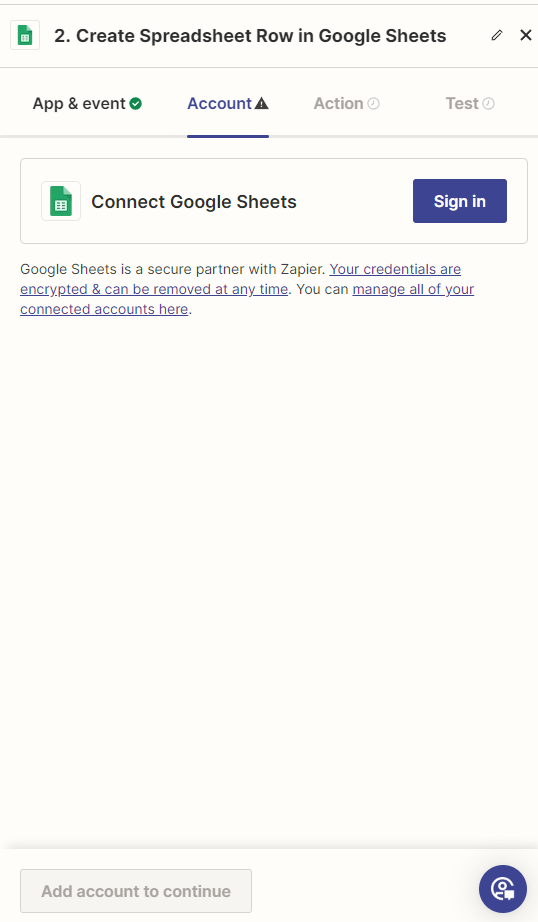
After logging into the account and granting Zapier permission, I continue configuring the actions that need to happen at the time the data is exported
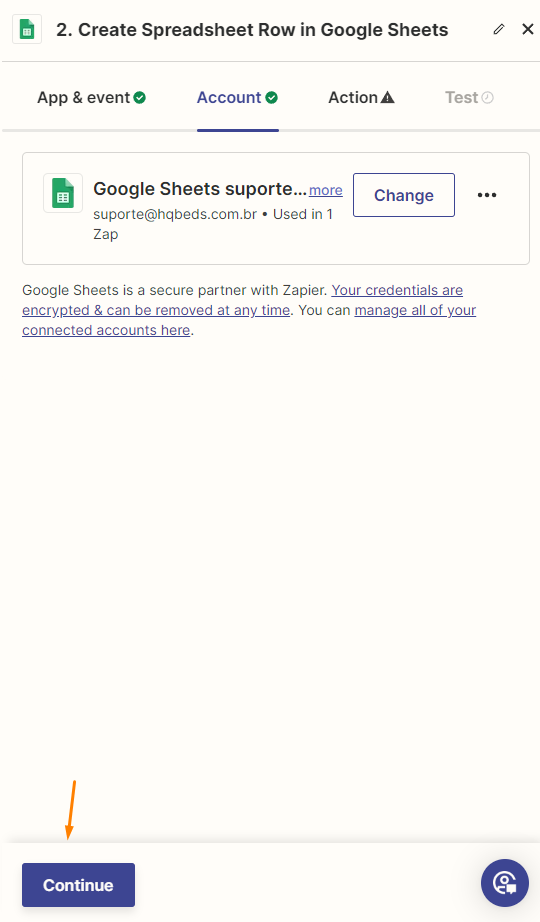
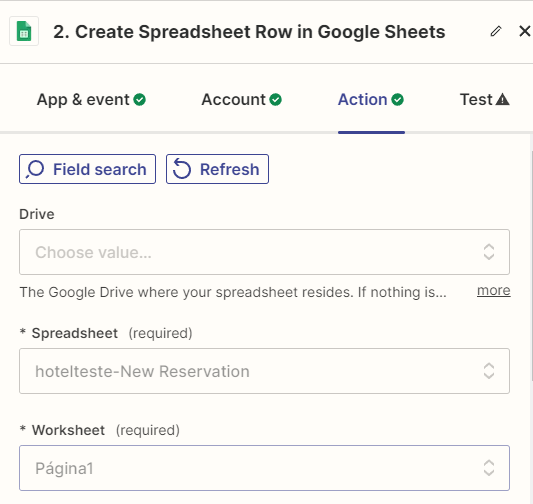
Next, I set the Drive folder, the spreadsheet, and the sheet that will be used
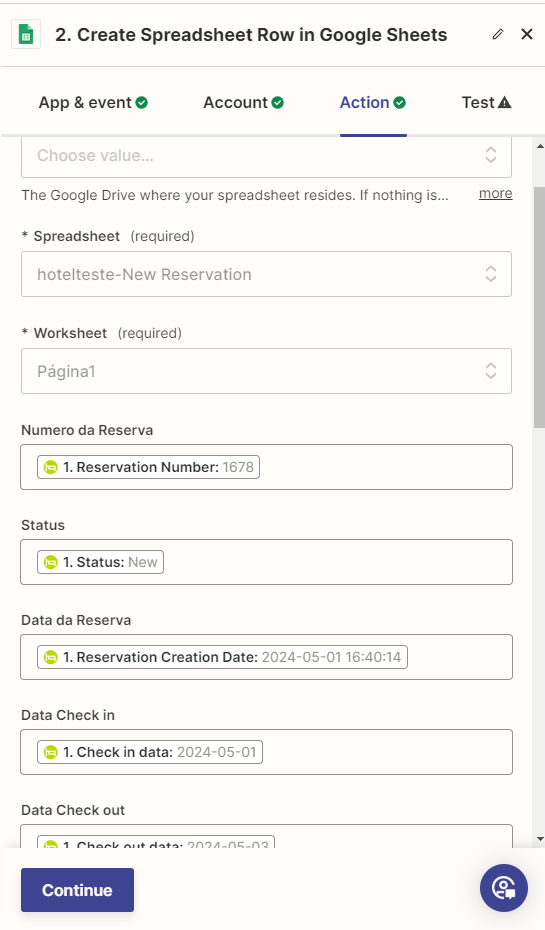
Next, I fill in the fields with the data I'll receive from the New Reservation trigger
And in the Test tab, I can run a test sending the data as I set it up, to be received in my Google spreadsheet
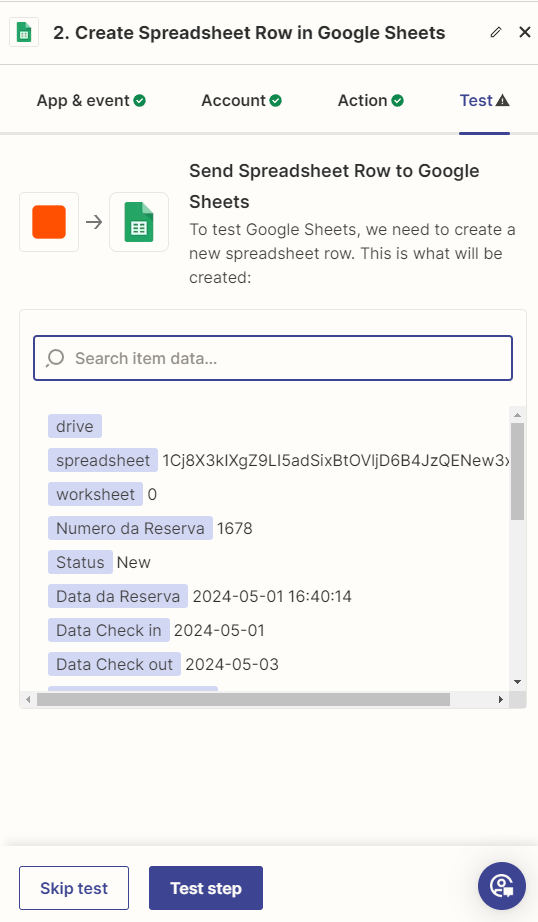
When the test finishes, Zapier will show that the test data was sent to the spreadsheet, and that's it — the Zap has been created!
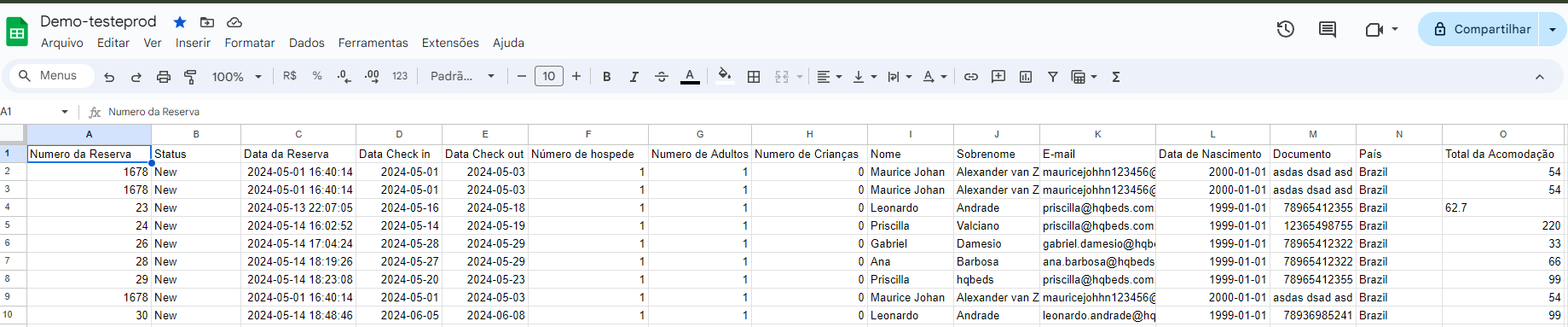
Spreadsheet that stores the new reservations made on hqbeds' Mapa (booking map)
Creating a Zap with the WhatsApp Notifications app
Through the triggers available on the hqbeds platform with Zapier, you'll be able to receive notifications of new reservations, for example, on your WhatsApp — below we'll show how this integration works.
Once you've already integrated your Zapier account with the hqbeds platform, if you don't remember how, see HERE how to do the integration.
Now you need to choose the action app, meaning the app that will receive the information from the trigger you created — let's choose the WhatsApp Notifications app
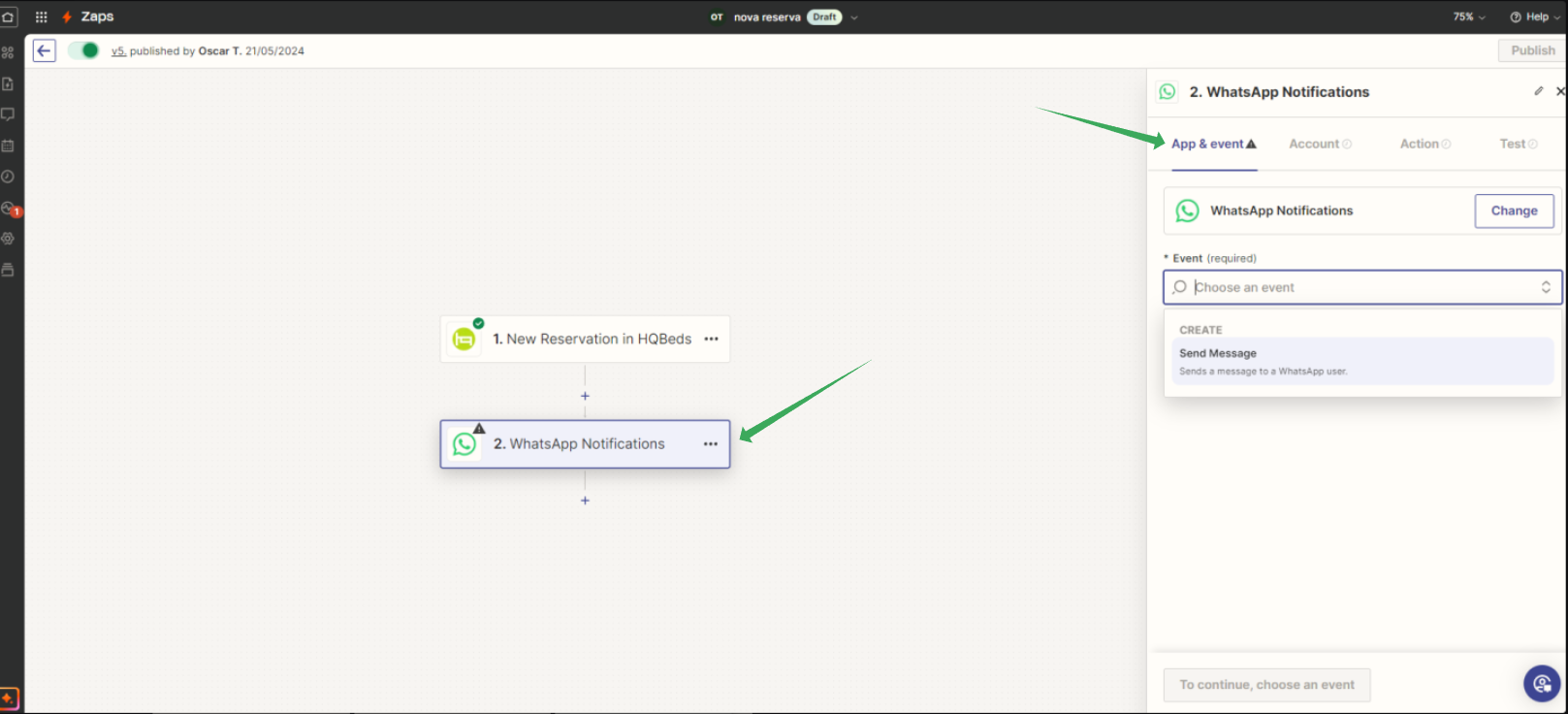
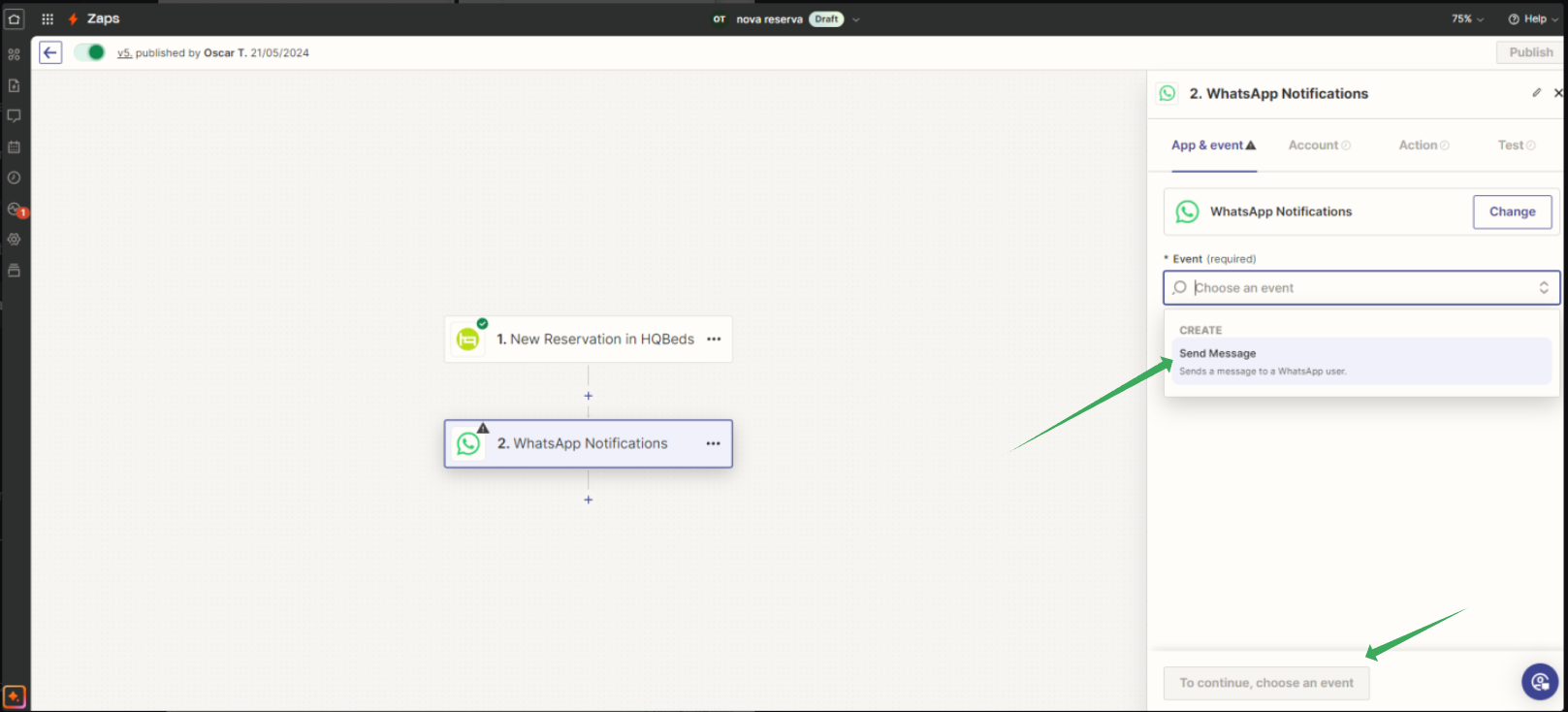
In Event, choose the event you want — in this case, WhatsApp Notifications only allows the Send Menssage event — and click To continue, choose an event to continue with the setup
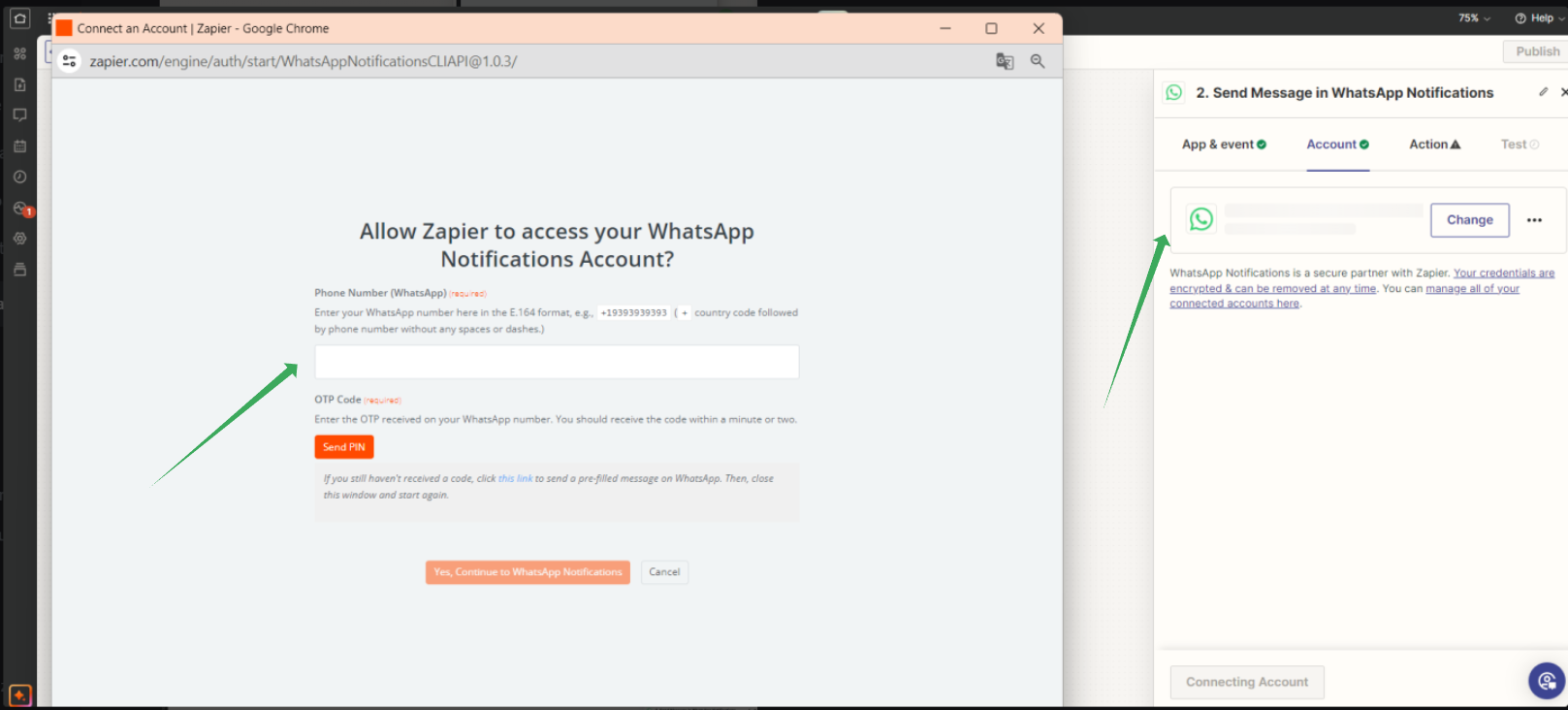
In the Account tab, you'll set the link to the WhatsApp account number that should receive the notifications.
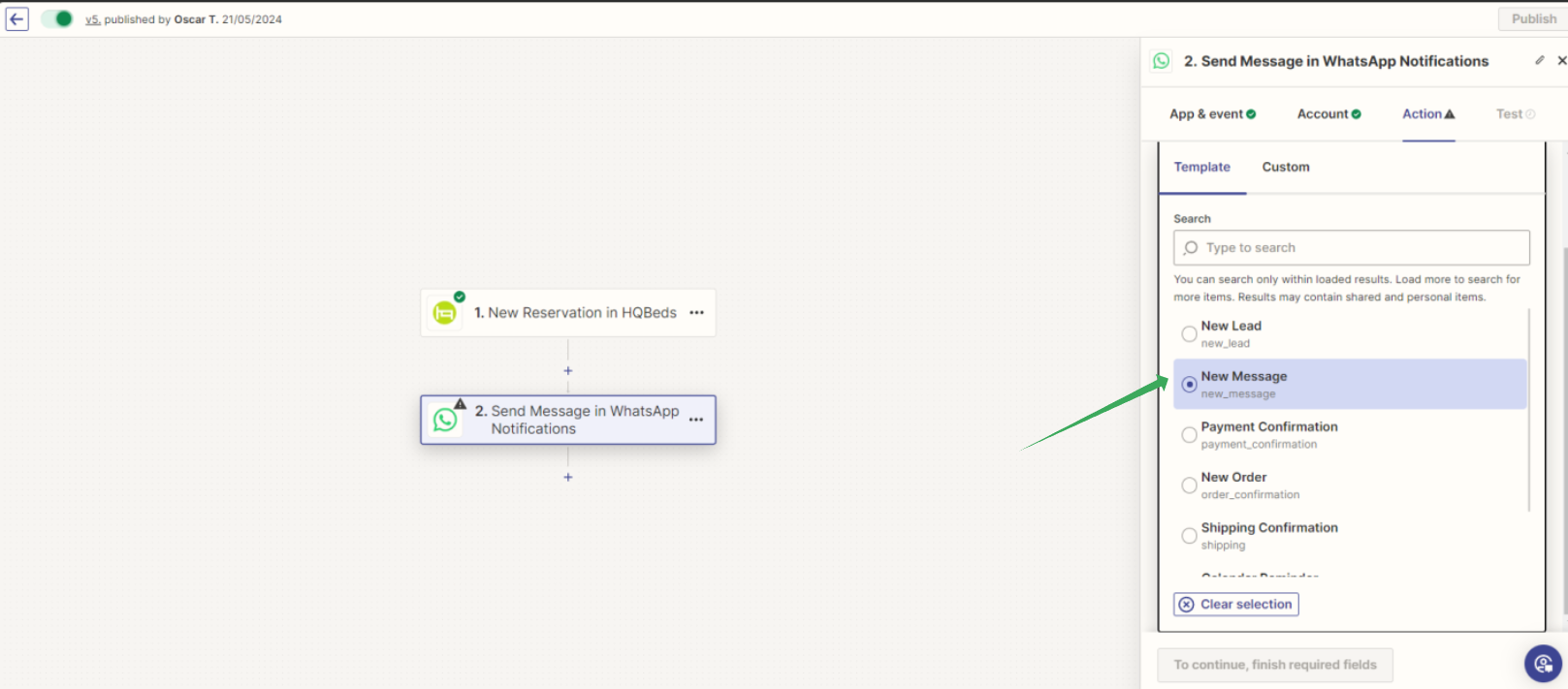
In the Action tab, you'll choose the New Message template
Now fill in the fields with the data you want to receive from the New Reservation trigger
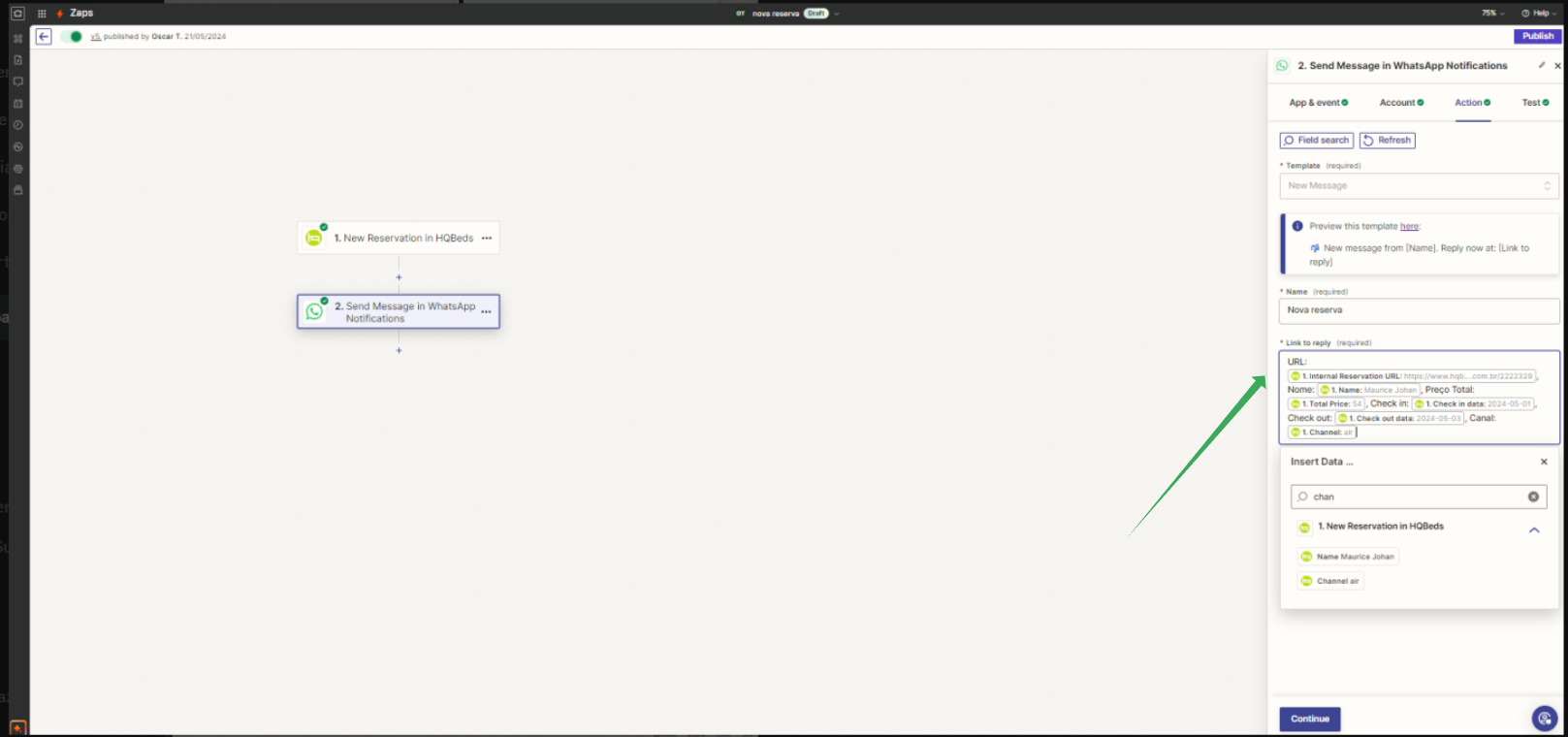
Once that's done, finish setting up the Zap and send a test notification, and the setup is complete!
This way, whenever a new reservation arrives on the hqbeds platform, you'll receive a notification on your WhatsApp
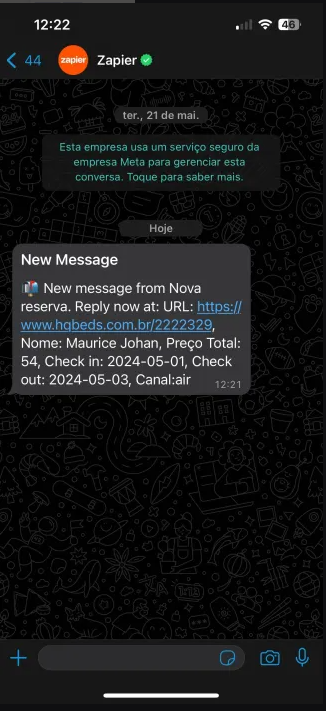
IMPORTANT:
- WhatsApp Notifications allows one number per Zap — if you want to send notifications to more numbers, you need to set up another Zap
- When setting up the number, WhatsApp Notifications will request permission to validate the setup.
- It's not possible to send notifications to WhatsApp groups
- The WhatsApp Notifications app doesn't allow interaction, meaning it's not possible to communicate with the guest through this integration
Support and liability information
- For questions about using the Zapier platform, we recommend checking Zapier's official documentation https://help.zapier.com/hc/en-us or contacting Zapier support (the type of support you get will depend on your chosen Zapier plan)
- If you have questions about the process of integrating the hqbeds platform with Zapier, you can contact our support team at the WhatsApp Support Center (text or voice messages only)
- Hqbeds is not responsible for, and will not provide support for, the configuration of Zapier with the apps you integrate.